
Samsung Galaxy One UI 8 Update
Samsung just dropped the stable One UI 8 update on its flagships, and it’s a fresh take on your daily phone habits. I tested this on my S25 Ultra with a manually installed build ending in 5B Yi3—didn’t wait for the over-the-air push. Side by side with the S24 Ultra on One UI 7, the changes shine in small ways that add up to a smoother ride.
This guide breaks down every tweak. You’ll see side-by-side looks at the lock screen, home screen, settings, and key apps. Expect practical tips on what works better and where it falls short, so you can decide if the update lives up to the hype.
Lock Screen Revolution: Customization and Notification Hub Overhaul
The lock screen in One UI 8 feels more alive and personal. It pulls you in with smart tweaks that blend function and style. Let’s dive into the details.
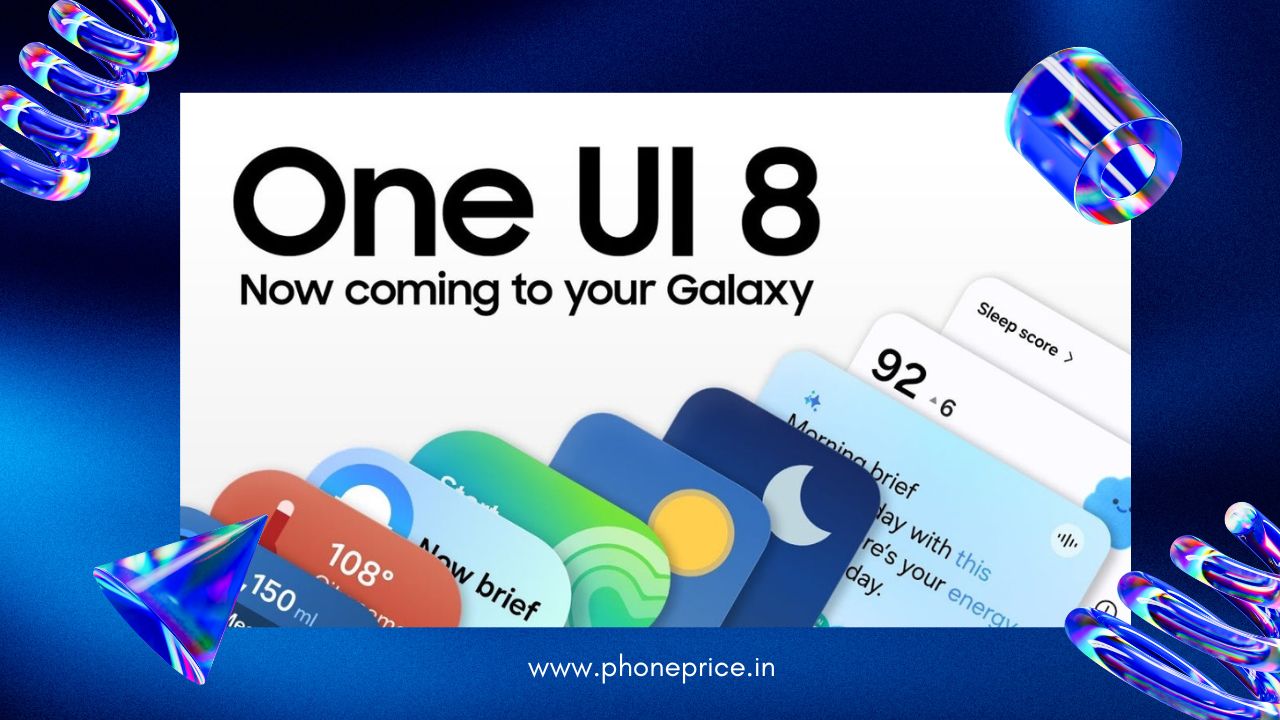
What is Samsung Galaxy One UI 8?
One UI 8 is Samsung’s latest custom interface crafted on the Android 16 platform. This upgrade continues Samsung’s commitment to enhancing user experience, focusing heavily on refined design, improved productivity tools, and more seamless interactions. With each version, Samsung balances aesthetics with powerful features, and One UI 8 exemplifies this by blending functionality with elegance.
Key Features of Samsung Galaxy One UI 8
- Samsung has packed One UI 8 with numerous improvements that make everyday use more enjoyable and efficient.
- UI & Design Improvements
- Fresh new icons and a refreshed color palette
- Ultra-smooth animations easing transitions and app launches
- Greater customization options to personalize home screens and themes
Performance Enhancements
- Noticeably faster app loading times
- Enhanced multitasking capabilities including better split-screen handling
- Overall system optimizations making Galaxy devices more responsive
Wallpaper Customization Enhancements
- Open the wallpaper menu, and things look cleaner right away. Gone are the tiny thumbnails from your gallery. Now, you spot simple icons for Recent, Favorites, Videos, and Downloads—four steady picks that cut the clutter.
- Tap to expand, and it matches One UI 7 exactly. But the front view? Way simpler. Under the AI section, photo ambient mode gets a fresh preview. Samsung added a quick tutorial to explain how AI tweaks your pics based on time and weather—best for daytime outdoor shots.
- Test both versions, and the animations play out the same. It’s just a nicer setup page. Then, check the Colors spot for dynamic wallpapers. Pick from four animated styles where hues shift on their own. No more static choices; these bring motion to your screen.
Dynamic Clock and Widget Editor Updates
- The clock editor steals the show with a new dynamic font. It moves and fits your wallpaper like magic. Place it down, and it adjusts on the fly—especially cool with faces or pets in the background.
- Try it with a plain wallpaper, though, and it flops. I tested five options; none worked. But grab one with people, and watch it reposition itself. Make it bigger, move around, and the numbers blend with your profile. On the lock screen, it shifts smoothly from always-on display to full view.
- All other fonts stay the same as before. Styles pair well with the dynamic one too. Samsung tossed in an extra opaque style option. And the color picker? It uses a soft blur now, not a flat color—fits One UI 8’s vibe perfectly.
Now Playing Bar: Functionality and Visibility
- Tap and hold the Now Playing bar, and it expands with a smooth slide. No more abrupt pop-up like in One UI 7. This connected flow feels right at home.
- One UI 8 adds smart visibility. See your current mode, like Do Not Disturb, right there—tap to shut it off. Calls and meetings show up too. Got a Teams call? Jump straight to the app without unlocking.
- Some apps hide controls post-update. Fix it in Settings > Notifications > App Notifications. Set the app to “Show Always” when locked, and buttons like record or pause appear. Live notifications at the top look more see-through now. Settings match mostly, but the media player icon got a fresh look.
Lock Screen Shortcuts and Widgets
- Widgets get bigger previews across the board. No new ones jump out, but tweaks make them pop. The calendar’s countdown widget looks sharper, for one.
- Camera widgets follow suit with larger views. Weather ones shuffle order but stay familiar. The big win? A new “Create Note” shortcut. Tap it from the lock screen, and you’re in a blank note instantly—unlock not needed.
- This quick access beats digging through apps. Overall, the lock screen turns into a true hub. You stay informed without extra steps.
Home Screen, App Drawer, and Search Experience Redesign
Your home screen and app hunts feel snappier in One UI 8. Spacing tightens, and search gets a brain boost. These changes make navigation a breeze.
Home Screen Widget Refinements
- Widgets across the board use bolder text and less empty space. The weather one squeezes info tighter—easy to glance at rain chances. Battery stats follow the same rule: bigger numbers, no fluff.
- Suggested apps pack in more without crowding. Every widget shares this fresh layout. In the weather widget settings, scroll to a new font color spot. It’s grayed out with background on, but flip that off, and pick white, black, or auto.
- This tweak lets text stand out on any backdrop. Widget picker sees small wins too. Clock options stack side by side now, saving room. Previews shrink a bit for quicker scans.
App Drawer Scroll Bar and Search Revamp
- Drag the side scroll bar, and letters shrink for a subtle nudge. But search? That’s the star. Containers turn transparent so you peek through to the background.
- Carousels vanish—everything stacks vertically and grows as needed. Downloads and screenshots sit side by side. Recent searches ditch the “Clear All” button for a trash icon. No scrolling to see options; all front and center.
- This setup cuts time wasted on swipes. Search feels open and fast.
Enhanced Search Results Interaction
- Hunt for an app, and results change how you interact. The “Show More” button? Now a drop-down arrow at the top right. Tap to expand or collapse—no hunting for a “Show Fewer” at the bottom.
- That’s huge for quick closes. The “Search in App” button swaps for an arrow by the title. Tap either; same result. Settings search adds toggles for instant flips—turn Wi-Fi on without leaving the list.
- Scroll to the end, and “Search” becomes “Show More.” They do the same job. These shifts make digging through your phone less of a chore.
Quick Settings Panel Tweaks
- Notifications look about the same. But quick settings? Thicker brightness bar and chunkier buttons stand out. Pull down Wi-Fi or Bluetooth, and cards grow with extra space between items.
- Expand fully, and icons refresh. Play Music gets a note symbol over the old play button. Smart View matches the modes look now. In the edit page, a gear icon sits by panel settings—easy access.
- These small polishes make one-handed use smoother. No big overhauls, just better flow.
Multitasking and Sharing Innovations
One UI 8 amps up how you juggle tasks and send files. Split screens flex more, and sharing feels secure. These tools fit real-life needs.
Advanced Split-Screen Capabilities (90:10 Ratio)
- Split screen hits a new level with a 90:10 ratio. Shrink one app tiny while the other takes over. In One UI 7, push too far, and it snaps shut—frustrating.
- Now, you see way more of your main app. Switch focus? Just tap the small one. No awkward double-taps needed like before. This setup gives you control without losing usability.
- Imagine reading email full-screen with a quick weather check aside. It nails that balance.
Pop-Up View Modernization
- Pop-up windows drop the borders for extra space. Menus hide at the top—tap the blue bar to bring them out in a rounded float. All options show up front; no more ellipsis digs.
- The minimize button turns into a simple dash. No arrows cluttering things. Activate pop-up on both versions, and One UI 8 feels roomier and quicker to tweak.
- This redesign turns floating apps into seamless tools.
Redesigned Share Sheet and Secure Folder Integration
- Share files, and thumbnails shrink while photos animate in nicely. The sheet floats with a blur behind—no edge-to-edge stretch or top handle. Select pics, and it pops cleaner.
- Secure Folder joins the party. Share from your main space to the locked one directly—even if it’s on in both versions, it only shows in One UI 8. Tap More, and the float carries over.
- Options get a new toggle: include location data or not. Quick Share tabs for send and receive match One UI 7, but the receive tab shines. Open it from quick settings, and your phone goes visible to all nearby—grab files from strangers fast, then it resets.
- This makes sharing safer and simpler.
System Settings Deep Dive: Security, Battery, and Accessibility
Settings in One UI 8 organize smarter, with security bumps and easy tweaks. You’ll find options faster. Let’s unpack the key spots.
Battery Protection Simplification
The battery icon cleans up—less busy, more direct. Inside, protection settings shift. Adaptive mode becomes a simple toggle called Adaptive Protection, plus a clear description. Everything else runs the same. This makes power management glanceable. No deep menus to hunt.
Enhanced Secure Folder Security Options
- Secure Folder locks consolidate under one spot: Secure Folder Lock and Biometrics. Set separate fingerprints here—not just the phone’s defaults. Add, check, or toggle them apart from main ones.
- Notifications switch to radio buttons over toggles—same job, neater look. Hide apps blocks notifications too; unhide via the menu only. The big upgrade? Hide Secure Folder encrypts everything, not just hides.
- Icon vanishes, apps pause, no alerts. Unhide from quick settings tile—add it first. Enter PIN, and it’s back. But search after, and it shows; re-hide manually.
- A new toggle lets background activity run while locked. Share panel access for secure apps? Activate it here.
Bluetooth’s Auracast page redesigns with a tutorial. Start broadcast, and grab the password or QR code easy. Stop button grows for quick taps. Samsung DeX settings expand later, but the page looks fresh now. Side button double-press launches Samsung Wallet—tap power twice, and it’s open. Modes and Routines add triggers like exercise end or call end. Actions grow: show Wi-Fi QR, boost dialogue, custom pop-ups. Samsung apps like Calendar, Notes get more controls—create alarms, find images. Discover suggests weather routines and advanced ones. Sound settings add boost dialogue. Notifications tab for Secure Folder, sort on the right.
Accessibility Feature Expansion vision tools gain “Magnify keyboard while typing.” Set magnification to full screen, and keys zoom as you type—One UI 7 skips this. Hearing aid pairing happens right in the menu—no extra page. Assistant menu’s pinch zoom adds plus/minus buttons over gestures alone. Interaction controls introduce Mouse Keys. Connect a keyboard in DeX, and use keys to steer the pointer. Developer options hide an experimental Linux terminal—525MB download, but I hit errors on install. These steps make the phone fit more users.
Application-Specific UI and Feature Enhancements Samsung’s apps get UI shines and smart adds in One UI 8. They tie into the system’s fresh feel. Here’s the rundown.
Samsung Internet App Overhaul The menu goes transparent—see the site URL to share fast. A dock holds key items; scroll horizontal for the rest. Edit page titles sections: buttons, menu, toolbar. Minus icons remove bits quick. Drag to reorder with a hint at top. Done button applies top changes—unlike instant saves before. Privacy settings rename to dashboard, but function stays. This clarity speeds browsing.
Gallery Editor and Stories Page Redesign photo editor packs tighter. AI button shrinks, joins the line. Rotation tools group under one bar. Expand any, and the pic shifts up—keeps focus sharp. Filters icon updates, no function change. Text in decorations hides till you pull the handle. Undo/redo buttons refresh. Video editor mirrors this: icons over big buttons, crop acts like photos. Search bar redesigns; recent and suggestions swap spots. Clear single history items now. Stories get gradient backs based on pic colors—purple or turquoise. Quick add to favorites button, with a sand clock counter. But favorites hide from carousel—no easy undo. Suggestions pop over the text box. “Created by you” turns to “Create a Story.” App menu goes transparent with new buttons.
Reminder App Workflow Streamlining Side menu vanishes—categories hit the main screen right away. Custom ones collapse/expand; scroll, and they fold with a tooltip name. Ellipses hold trash, settings, sorts—now ascending/descending. Sync now button adds. Select over edit; card view only. Manage categories lets direct taps to tweak—no long hold. No pinning; just edit, delete, reorder. Hide per category, no all-hide card. Settings move pin important to top there. Notifications become shared alerts under one spot. New suggestions section folds out with ready reminders. Text box adds mic input. No full-screen plus button; drag handle for it. Set custom dates, times, locations, add pics or checkboxes—all inline. Type “grocery,” and it suggests a list. Saves steps big time.
Clock and Contacts App Improvements clock alarms let you add existing ones to groups via plus. Widgets pick whole groups now—not just singles—for home control. Contacts profile card simplifies: tap top half to edit, no button. Portrait preview matches your phone—better align than square old one. Buttons stack at bottom: change image, text, effects. New “Also use as profile picture” skips duplicates. Tap pic alone for card access. Contact history pulls in call recordings—all in one view. Makes reviewing calls simple. Other apps tweak too. Camera swipes up for quick controls—set in settings dropdown. Video options drop quality/space pick; HDR simplifies. Weather animates smoother with see-through back. Units add hybrid mix. AI select grabs screen stuff instant—no wait. My Files categories top out; recent filters by app. Samsung Health challenges go time-based with “Get There First.” Food tracking matches older version.
Samsung DeX: Expanded Control and Customization DeX steps up with deeper settings. Access via Connected Devices > Samsung DeX. Connected display switches mirrored or extended. In extended, flow pointer toggles mouse between phone and screen. Reorder displays too. Adjust font size, screen zoom—max bulks app drawers. Resolution hits 2K on some; rotate 90, 180, 270 degrees. Separate timeout up to 60 minutes; keep on via face detect. Keyboard spots on TV, monitor, or phone—toggle onscreen show. Mouse/trackpad adds auto-touchpad, scroll direction, gestures. S Pen hovers or touches as mouse. Sound plays on connect. These tools make DeX feel like a full desktop.
There is noticeably a bundle to know about this. I assume you made certain nice points in features also.
Can you be more specific about the content of your article? After reading it, I still have some doubts. Hope you can help me.
Your point of view caught my eye and was very interesting. Thanks. I have a question for you.
I’ve read several good stuff here. Certainly worth bookmarking for revisiting. I wonder how much effort you put to make such a wonderful informative website.
Thank you for your sharing. I am worried that I lack creative ideas. It is your article that makes me full of hope. Thank you. But, I have a question, can you help me?
Balato88, heard some whispers about you. Are you the real deal? Going to give you a shot.